Open, save and find your projects
A project is the file that holds a configuration while you work on it. This page covers opening and saving projects, getting back to recent ones, the Projects pane, and opening a log file from the PC.
Before you start
- REXDESK is open. No logger is needed.
Open a project
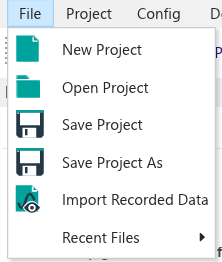
There are three ways:
- Click
Open Projecton the toolbar (orFile ▸ Open Project) and choose the file. - Choose
File ▸ Recent Filesand click one of the numbered entries. Each entry is the full path of a project you opened or saved before. - Double-click the project in the
Projectspane (see below).
The title bar shows the project's name, the Configuration pane shows its blocks, and the status bar reads Opened <path>.
Save your changes
As soon as you change something, a star appears after the project name in the title bar, for example GuideDemo *.
Click
Saveon the toolbar (orFile ▸ Save Project).The star goes and the status bar reads
Saved <path>.
To save under a new name or as XML, use Save As; see Create a configuration.
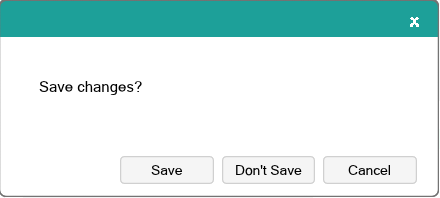
If you open another project or close REXDESK while the star is showing, REXDESK asks first:
| Button | Result |
|---|---|
Save | Saves the project, then carries on |
Don't Save | Carries on and drops the changes |
Cancel | Goes back to the project |
Find projects in the Projects pane
The Projects pane on the left lists the folders you have used, with the project files (.rpf and .xml) inside each one.
- The first line,
REXGEN: <name>, is the configuration on the connected logger, not a file. - Click the
+in front of a folder to see its projects. - Double-click a project to open it. The open project is shown in bold.
- Folder names are shortened. Rest the pointer on a folder to see its full path.
Right-clicking a project opens a menu with Delete, Run Configuration and Open In External App. The three buttons at the top of the pane are Import Project, Edit in external application and Delete Project.
Keep a folder at hand with a bookmark
Right-click a folder in the
Projectspane and chooseAdd to bookmarks.The folder appears under
Bookmarksat the bottom of the pane, marked with a star.
To remove it, right-click the bookmark and choose Remove bookmark. The same menu has Refresh and Show in Explorer. Right-clicking the empty Bookmarks line offers Add folder bookmark....
Open a log file from the PC
Choose
File ▸ Import Recorded Data.The
Open ReX data filebox opens.Choose a
.rxdfile and clickOpen.The
Datalogswindow opens onChart, with the log's channels listed and plotted.
From there the log can be inspected and exported; see View a log. To convert several files at once, use the Data Logs pane instead; see Convert logs that are already on the PC.