Read the logger information
See what the connected logger reports about itself: model, serial number, firmware, clock, SD card, the active configuration and, depending on the model, hardware details. Use it to check a logger before a test and when you contact support.
Before you start
- A logger is connected and the status bar shows
CONNECTED.
Steps
Choose
Device ▸ Logger Information.The
Internal Storagewindow opens. Its top part shows a summary line and, below it,Logger information.- Read the sections. Scroll inside the
Logger informationarea to see the lower ones. - Click
Refreshnext toLogger informationto read everything again.

What you should see
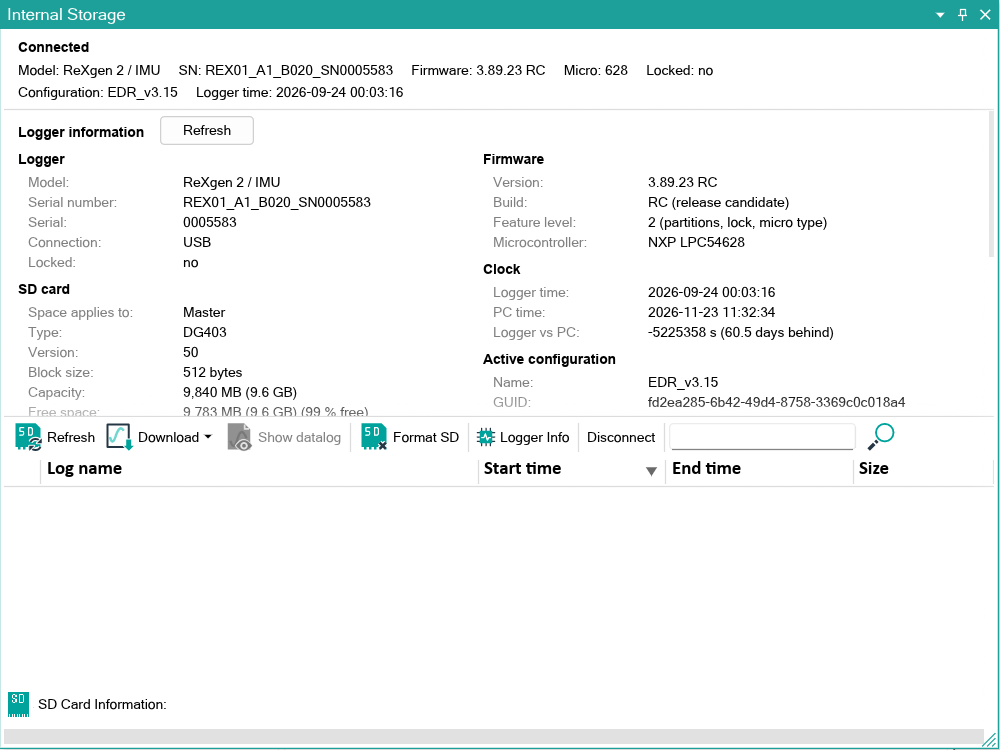
| Section | What it tells you |
|---|---|
Logger | Model, Serial number, the short Serial used in log file names, Connection, and whether the logger is Locked |
Firmware | Version, Build, Feature level and Microcontroller |
Clock | Logger time, PC time and Logger vs PC, the difference between them |
SD card | Type, Version, Block size, Capacity, Free space, Partitions and the number of logs on each partition |
Active configuration | Name, GUID and Size of the configuration the logger is running |
Hardware (EEPROM page 3) | Board revision, assembly date, and the number of CAN FD channels, digital inputs, digital outputs and analog inputs; which CAN and LIN interfaces are fitted |
Diagnostics (NFC reader) | Whether the board has an NFC reader |
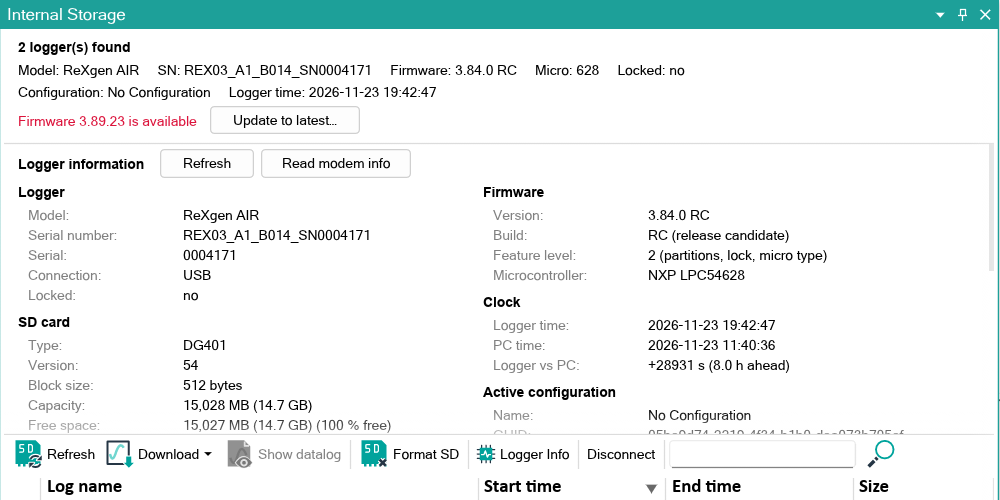
Modem (LTE) | REXGEN Air only: filled in after you click Read modem info |
On a REXGEN Air the window also has a Read modem info button:
Check the clock
Logger vs PC shows how far the logger's clock is from the PC's, for example -5225358 s (60.5 days behind) or +28931 s (8.0 h ahead). Log file names and timestamps come from the logger's clock, so set it before recording: Device ▸ Set Device Time.
If the logger's clock is behind, new logs get earlier dates than the logs already on the card and sort below them in the log list.
Troubleshooting
| Symptom | Cause | What to do |
|---|---|---|
Firmware <version> is available in red, with an Update to latest… button | REXDESK carries newer firmware than the logger runs | See Update the logger firmware |
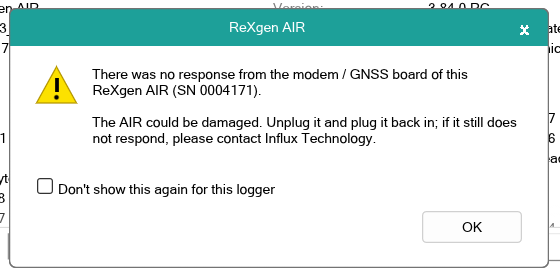
After Read modem info: "There was no response from the modem / GNSS board of this REXGEN Air … The AIR could be damaged. Unplug it and plug it back in; if it still does not respond, please contact Influx Technology." | The modem board did not answer | Click OK, unplug the AIR, plug it in and try again. If it still does not answer, contact Influx Technology with the serial number |
Name: of the active configuration reads No Configuration | The logger holds only its empty default configuration | Send a configuration to the logger |
Related
---
Written for REXDESK 1.0.0.791 (23 Nov 2026).