Check the 4G connection with LTE Check
DRAFT – unverified steps: everything a working modem would show (the text stream from the modem, the filled-in Diagnostics fields) and Export Log. On the test REXGEN Air the modem board did not answer, so only starting, the connection line and stopping were observed.
Watch what the 4G modem of a REXGEN Air reports while it registers on the network: SIM, operator, signal and data connection. Use it when a logger does not upload.
Before you start
- A REXGEN Air is connected over USB and is the active logger.
Device ▸ LTE Checkis greyed for other models on USB. - The AIR runs current firmware. On firmware 3.84.0 LTE Check could not connect; after updating to 3.89.23 it did. See Update the logger firmware.
- A SIM card is fitted and the antenna is connected.
- The
Internal StorageandLive Datawindows are closed.
Steps
Choose
Device ▸ LTE Check.The
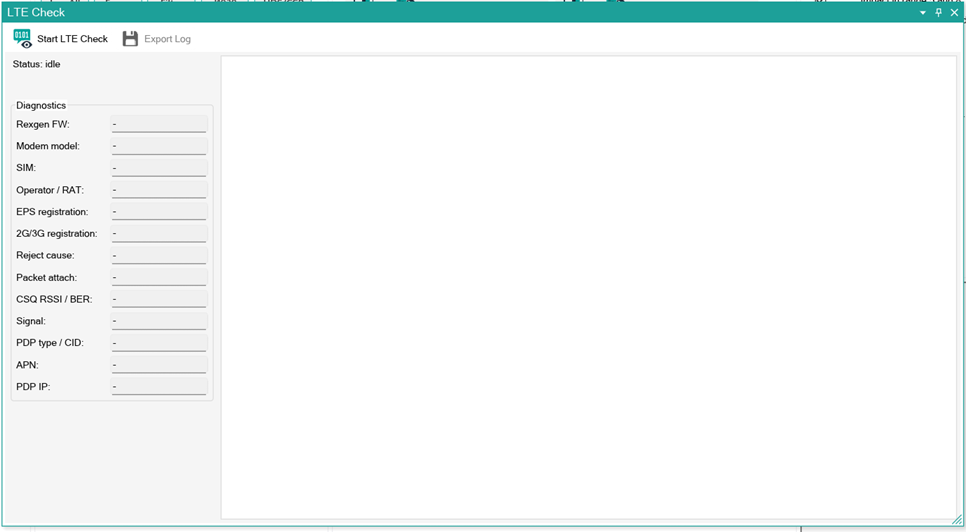
LTE Checkpane opens withStatus: idle, an emptyDiagnosticsbox and an empty text area.Click
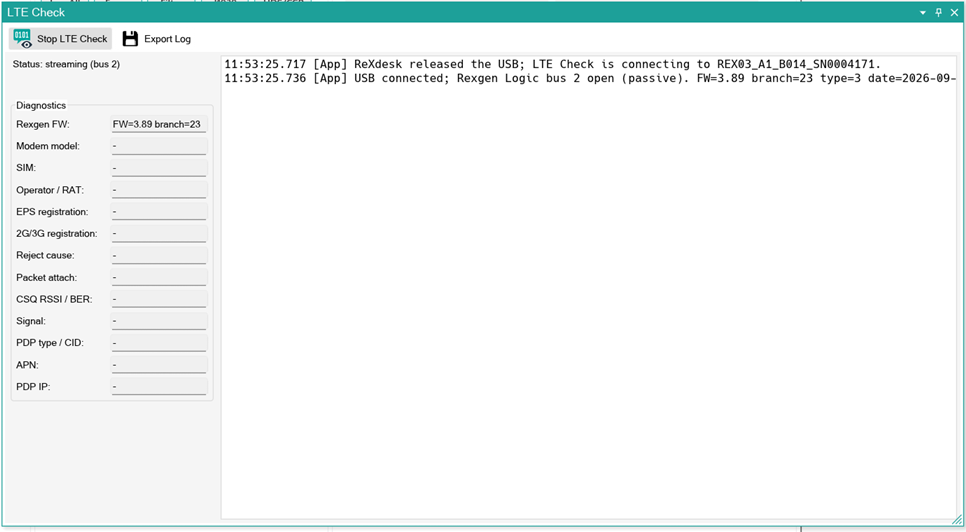
Start LTE Check.REXDESK lets go of the logger and LTE Check takes it over. The text area shows
[App] REXDESK released the USB; LTE Check is connecting to <serial>.and then[App] USB connected; Rexgen Logic bus 2 open (passive).followed by the firmware details. The status readsStatus: streaming (bus 2)and the button changes toStop LTE Check.- Watch the text area and the
Diagnosticsfields fill in as the modem starts. Click
Stop LTE Checkwhen you are done.The text area shows
[App] USB released., the status returns toidleand REXDESK reconnects to the logger.
The Diagnostics fields
Rexgen FW, Modem model, SIM, Operator / RAT, EPS registration, 2G/3G registration, Reject cause, Packet attach, CSQ RSSI / BER, Signal, PDP type / CID, APN, PDP IP.
Export Log saves the text area as a .log or .txt file to send to Influx support.
Notes
LTE Check only listens. It sends nothing to the modem and does not change the logger's configuration.
While LTE Check is running, the other device commands are not available. Stop it before you use Live, Internal Storage or Run.
Troubleshooting
| Symptom | Cause | What to do |
|---|---|---|
[App] Connect failed: the logger is not attached (or another program is using it) repeats and the status reads reconnecting (attempt n) | Seen with firmware 3.84.0; also shown when another program holds the logger | Click Stop LTE Check. Update the firmware, close any other program that talks to the logger, and start again |
Connected, but no lines from the modem and the Diagnostics fields stay at - | The modem is not answering | Use Read modem info in Logger information; if that reports no response, contact Influx Technology |
Related
---
Written for REXDESK 1.0.0.791 (23 Nov 2026).