Connect a logger and switch between loggers
Connect a REXGEN over USB and, when more than one logger is plugged in, choose which one REXDESK works with. Only one logger is active at a time: every command in the Device menu, Run, Live and Internal Storage act on the active logger.
Before you start
- The REXGEN USB driver is installed and the logger is powered.
- REXDESK is open.
Connect one logger
Plug the logger into a USB port.
Within a few seconds the status bar at the bottom shows
Interface: USB (<serial>),CONNECTED, the firmware version, the serial number and the name of the configuration on the logger.
If the firmware is older than the one supplied with REXDESK, the firmware version is shown in red with - Out of date. See Update the logger firmware.
Choose a logger when two are plugged in
Plug in both loggers and start REXDESK, or plug the second logger in while REXDESK is running.
The
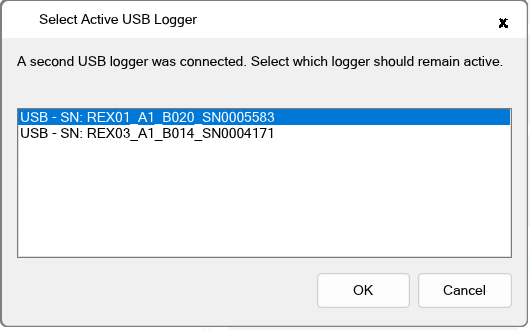
Select Active USB Loggerwindow opens: "A second USB logger was connected. Select which logger should remain active."Click the logger you want in the list and click
OK.The status bar shows the serial number, firmware and configuration of that logger.
Switch to the other logger
Click the small arrow next to the USB symbol in the status bar, to the right of
Interface: USB (<serial>).A menu lists
TCP/IPand every USB logger that is plugged in.Click the other logger.
After a few seconds the status bar shows
CONNECTEDwith the other logger's serial number, firmware and configuration.

The menus follow the active logger. For example, Device ▸ LTE Check is available for a REXGEN Air and Device ▸ Web Portal only for a REXGEN Pro.
Connect over Wi-Fi
Click
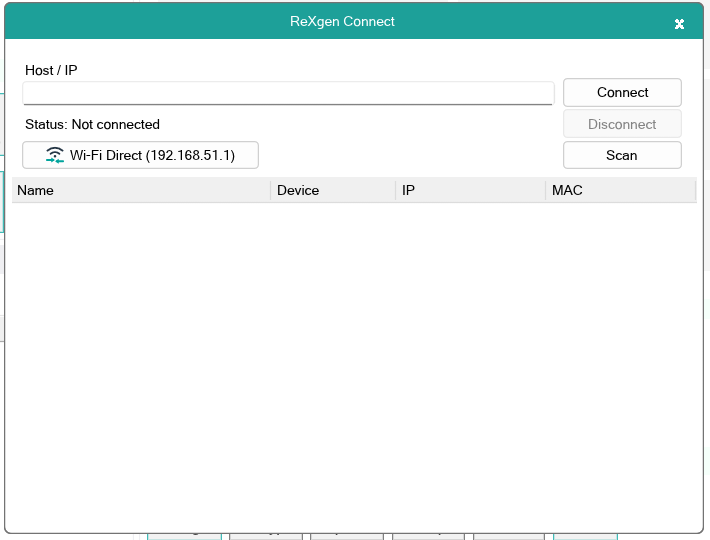
TCP/IPon the toolbar, or chooseWindow ▸ Logger Connection, or chooseTCP/IPin the status-bar menu.The
REXGEN Connectwindow opens.- Type the logger's address in
Host / IP, or clickScanand pick a logger from the list, then clickConnect.
Notes
After switching, check the status bar rather than the Projects panel. The first line of the Projects panel can keep the previous logger's configuration name until the next configuration is read.
The logger picker also appears when a logger restarts while another one is plugged in, for example at the end of a firmware update. Select the same logger again and click OK.
| Symptom | Cause | What to do |
|---|---|---|
The command line says Several loggers are connected (...). Choose one with --serial. | Two loggers are plugged in | Add --serial <serial> to the command |
| The command line says the logger is in use | REXDESK holds the USB connection | Close REXDESK first |
Related
---
Written for REXDESK 1.0.0.791 (23 Nov 2026).