Cloud Settings
Store the mobile network, FTP server and cloud storage accounts that a logger uses to upload its logs, then switch uploading on in a configuration. The accounts are kept in REXDESK on this PC; a configuration refers to them through its Upload and S3 tiles.
Add an account
Choose
Tools ▸ Cloud Settings.The
Cloud Settingswindow opens with three tabs at the bottom:Mobile,FTP SettingsandCloud Storage.- Click the tab for the kind of account, then the
New …button on its toolbar. Fill in the form and click
OK.Cancelcloses the form without saving.The account appears in the list: a mobile or FTP account under its
Label, a cloud storage account under its bucket name.
To remove an account, select it and click Delete …. REXDESK asks "Are you sure you want to delete the selected settings?"; click OK.
How passwords are stored
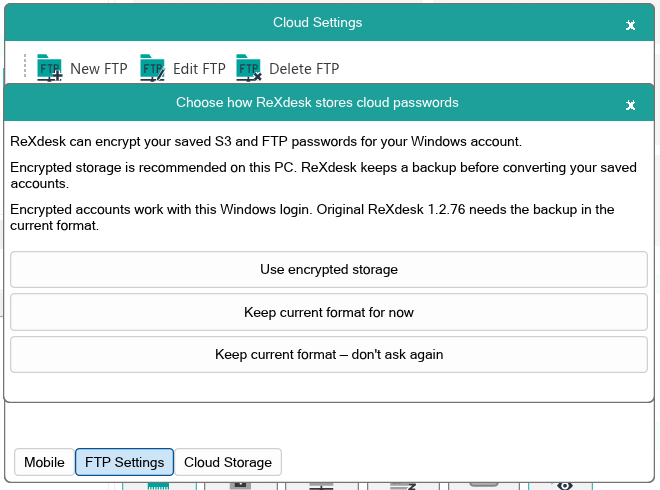
The first time you save an FTP or cloud storage account, REXDESK asks how to store passwords:
| Choice | Result |
|---|---|
Use encrypted storage | Passwords are encrypted for your Windows account. REXDESK keeps a backup of the accounts first. Recommended, unless you also use REXDESK 1.2.76 on this PC, which needs the accounts in the current format |
Keep current format for now | Nothing changes; REXDESK asks again next time it starts |
Keep current format – don't ask again | Nothing changes and the question is not shown again |
Mobile
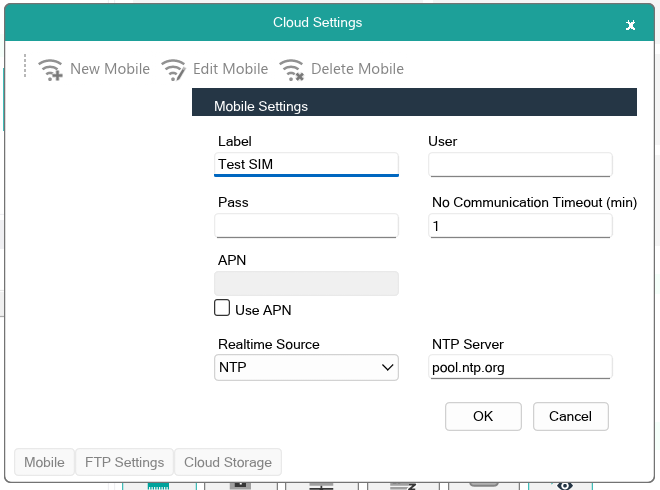
New Mobile, Edit Mobile, Delete Mobile.
| Field | Use |
|---|---|
Label | Your name for this entry |
User, Pass | The mobile operator's user name and password, if it needs them |
APN, Use APN | The operator's access point name |
No Communication Timeout (min) | How long to wait without communication |
Realtime Source, NTP Server | Where the logger takes the time from, NTP with pool.ntp.org by default |
FTP Settings
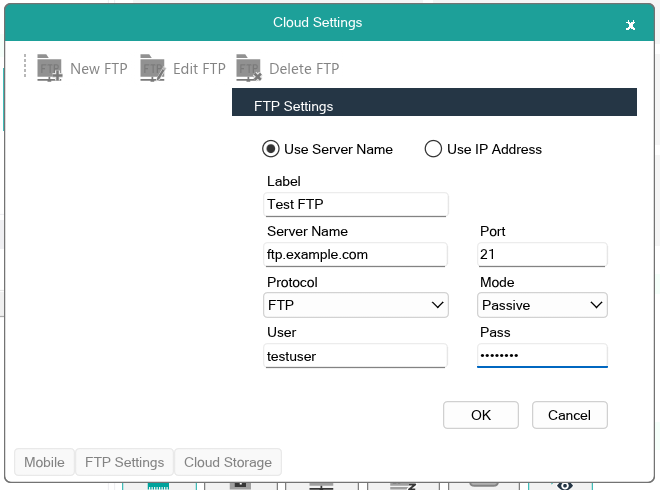
New FTP, Edit FTP, Delete FTP.
| Field | Use |
|---|---|
Use Server Name / Use IP Address | Address the server by name or by number |
Label | Your name for this entry |
Server Name, Port | The server and its port (21 by default) |
Protocol, Mode | FTP and Passive by default |
User, Pass | The account on the server |
Cloud Storage
New Storage, Edit Storage, Delete Storage, Import…, Export….
Type chooses the service: AWS S3, COMPATIBLE (MinIO) or GCSA (JSON).
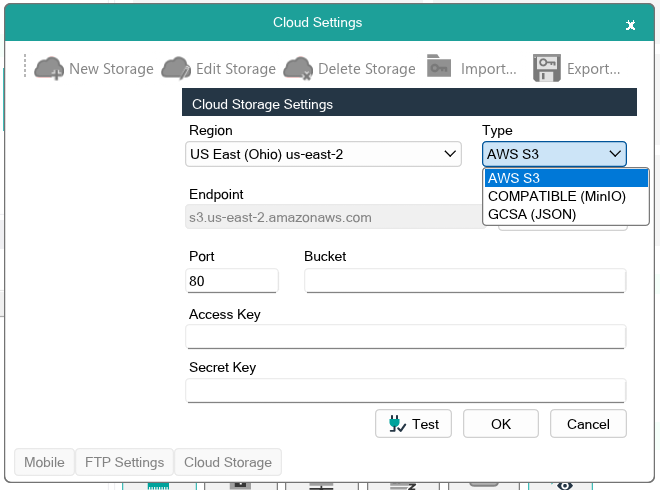
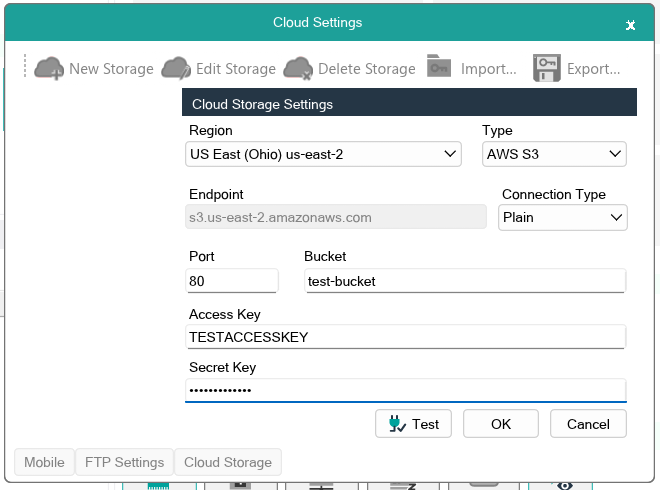
AWS S3: choose the Region from the list; REXDESK fills in the Endpoint. Type the Bucket, Access Key and Secret Key.
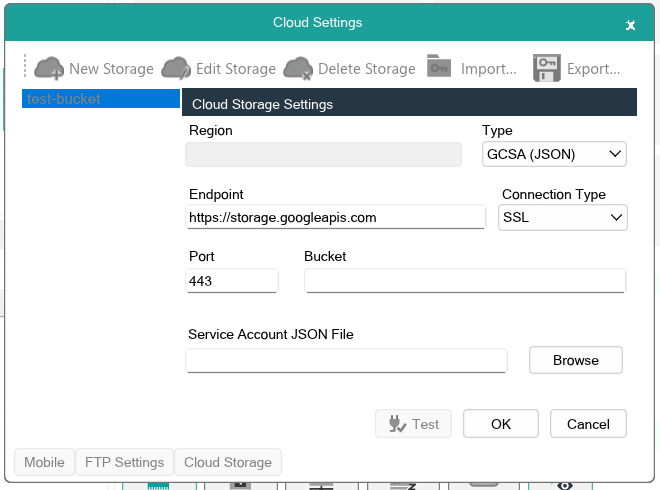
GCSA (JSON) (Google Cloud Storage): the endpoint is https://storage.googleapis.com with SSL on port 443. Type the Bucket and click Browse to choose the service account's JSON file.
COMPATIBLE (MinIO): type the Region, Endpoint, Bucket, Access Key and Secret Key of your own S3-compatible server.
Test checks the account against the server.
For AWS S3 the Connection Type starts as Plain on port 80. Check with your IT department whether an encrypted connection (SSL) is required before you save an account.
Switch uploading on in a configuration
Open the project and click a tile under Device Configuration.
Upload (FTP): tick Store data to FTP and choose the FTP account. Choose a Mobile entry if the logger connects through the mobile network. The other settings: Encrypt Credentials, Check Config Time (sec), Send Status Time (sec), Check Firmware Time (sec), Automatic Firmware Update, Upload All Files Before Sleep.

S3 (cloud storage): tick Enable Cloud Storage (AWS, GCS) and choose the Cloud Storage account. The other settings: Encrypt AWS Credentials, Firmware Check Time (sec), Status Send Time (sec), Configuration Check Time (sec), Automatic Firmware Update, Keep Log Files On Device, Upload All Files Before Sleep, and the buttons Test and Publish to Cloud….
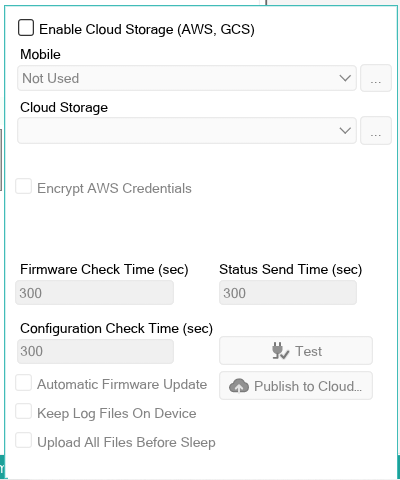
Press Esc or click outside the box to close it; the settings are kept. A tile that is switched on is shown in colour.
A configuration uploads either to FTP or to cloud storage, not both. Ticking Enable Cloud Storage (AWS, GCS) while Store data to FTP is ticked gives the message AWS not allowed when using FTP.
Troubleshooting
| Symptom | Cause | What to do |
|---|---|---|
No FTP settings found. Please add FTP from Tools -> Cloud Settings when you click Upload | No FTP account is saved | Add one on the FTP Settings tab |
No S3 settings found. Please add S3 from Tools -> Cloud Settings when you click S3 | No cloud storage account is saved | Add one on the Cloud Storage tab |
AWS not allowed when using FTP | Store data to FTP is ticked in the Upload tile | Untick it first |
| The password question appears every time REXDESK starts | Accounts are saved and you chose Keep current format for now | Choose one of the other two answers |
Related
---
Written for REXDESK 1.0.0.791 (23 Nov 2026).