View live data
Watch the values the logger is measuring right now, as a scrolling list, a table with one row per channel, a chart or a 3D picture of the logger's attitude.
Before you start
- The logger is connected and the status bar shows
CONNECTED. - The configuration running on the logger has
Liveswitched on (theLivetile underDevice Configuration). - The
Internal Storagewindow is closed. Only one task can use the logger at a time.
Steps
Going online and switching between the List, Fixed and Chart views
Click
Liveon the toolbar (orDevice ▸ Live).The
Live Datawindow opens. The line at the bottom readsOffline.Click
Online.Rows start to scroll. The button changes to
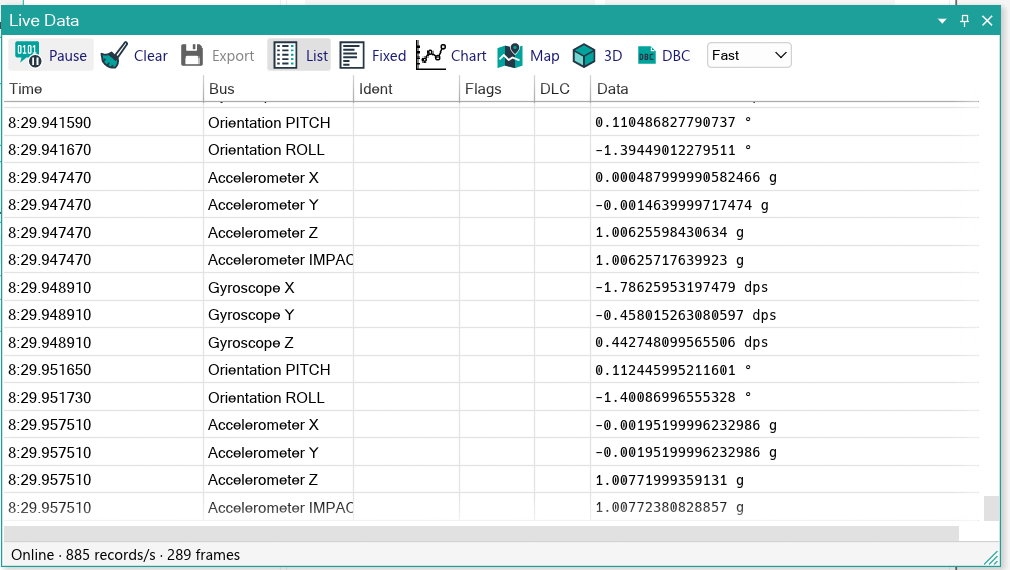
Pauseand the bottom line shows, for example,Online · 885 records/s · 289 frames.- Choose a view:
List,Fixed,Chart,Mapor3D. Click
Pauseto stop the stream.The button reads
Onlineagain, the bottom line showsOffline · 2417 frames received(your count will differ) andExportbecomes available. The views keep what was received.
The views
List shows every value as it arrives: Time, Bus, Ident, Flags, DLC, Data.
Fixed keeps one row per channel and updates its value in place. A channel that has not sent anything yet reads waiting for the first value.
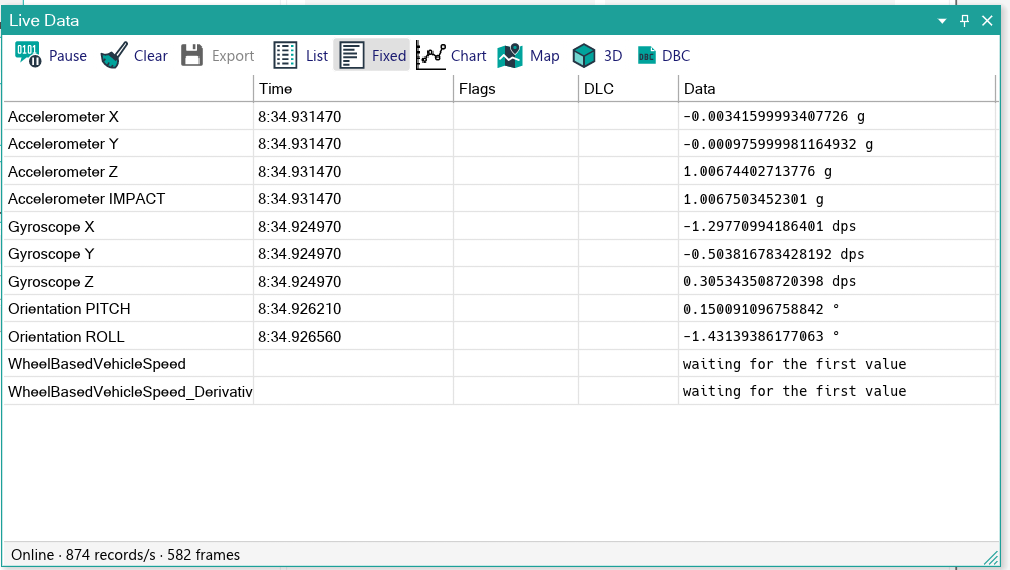
Chart plots the channels you tick. Click Separate to give each channel its own strip.

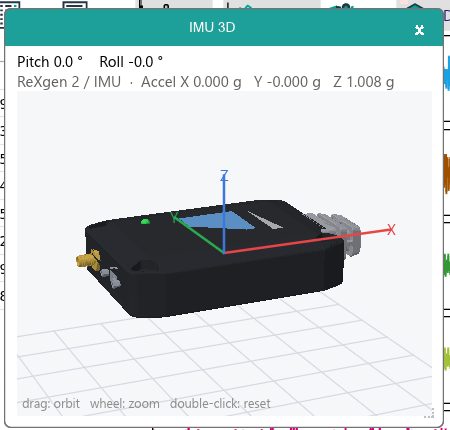
3D opens the IMU 3D window: a model of the logger that follows its pitch and roll, with the accelerometer values above it. Drag to orbit, use the wheel to zoom and double-click to reset the view.
Troubleshooting
| Symptom | Cause | What to do |
|---|---|---|
| The bottom line turns orange: "Online · no data yet (7 s). Check that the logger's configuration sends data to USB/Wi-Fi (Live) and that its buses or sensors are active." | Nothing is arriving: Live is off in the configuration, or no bus or sensor is producing data | Check the Live tile of the configuration on the logger and the wiring |
Notes
Export is available while the stream is paused. Clear empties the views.
DBC opens Signal databases, where you choose a DBC file per bus so that CAN frames are shown as named signals.
Related
---
Written for REXDESK 1.0.0.791 (23 Nov 2026).