Read the configuration that is on the logger
Load the configuration a logger is running into REXDESK to see what it records and when, and save a copy of it to a file as a backup.
Before you start
- The logger is connected and the status bar shows
CONNECTEDandConfiguration: <name>.
Save a backup copy
Choose
Config ▸ Logger ▸ Save Logger Configuration To File.A save window opens.
Choose a folder and a file name and click
Save.The status bar reads
Logger configuration saved to <path>. The.rxcfile is the configuration exactly as stored on the logger.
Make this backup before you send a new configuration or update the firmware. To put it back, use Config ▸ Run ▸ Run Config Using External File; if REXDESK refuses the file, see the troubleshooting table in Send a configuration to the logger.
Load it into the designer
Loading the configuration from the logger
Choose
Config ▸ Logger ▸ Load Logger Configuration.The title bar shows the configuration name, the
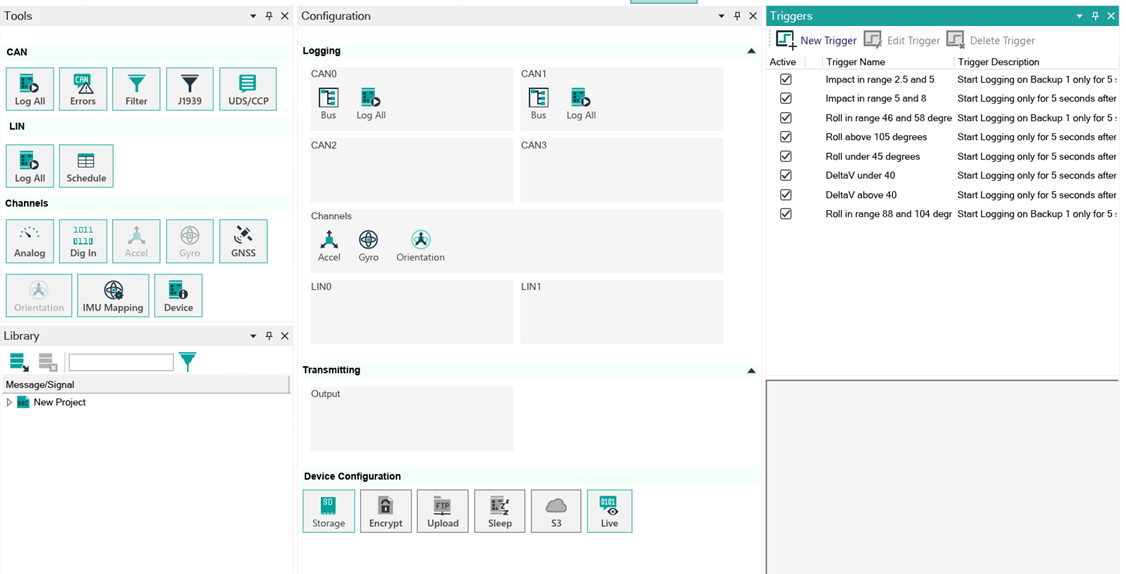
Configurationpane fills with blocks and the status bar readsLoaded the logger configuration <name>.- Click
Triggerson the toolbar to list the triggers.
Read the Configuration pane
| Area | Contents |
|---|---|
Logging ▸ CAN0 … CAN3 | A Bus block with the bus settings, and what is recorded from it, for example Log All |
Logging ▸ Channels | The logger's own channels: Accel, Gyro, Orientation, GNSS, Analog, Dig In |
Logging ▸ LIN0, LIN1 | LIN buses |
Transmitting ▸ Output | Messages the logger sends |
Device Configuration | Storage, Encrypt, Upload, Sleep, S3, Live |
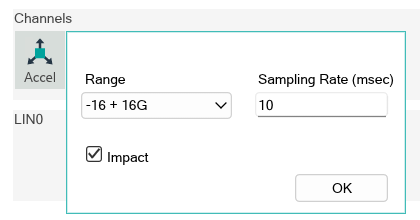
Click a block to see its settings. For example Accel shows Range, Sampling Rate (msec) and Impact:
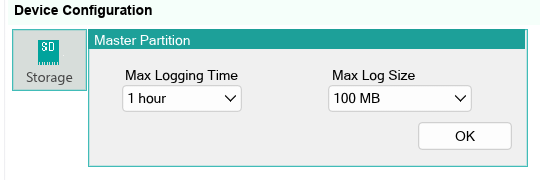
Storage shows Max Logging Time and Max Log Size for the Master Partition:
Click OK or press Esc to close a settings box.
In the Tools pane, a tile is greyed when the configuration already contains that block.
Read the triggers
The Triggers pane lists each trigger with an Active tick, its Trigger Name and a Trigger Description in plain words, for example "Start Logging on Backup 1 only for 5 seconds after …".

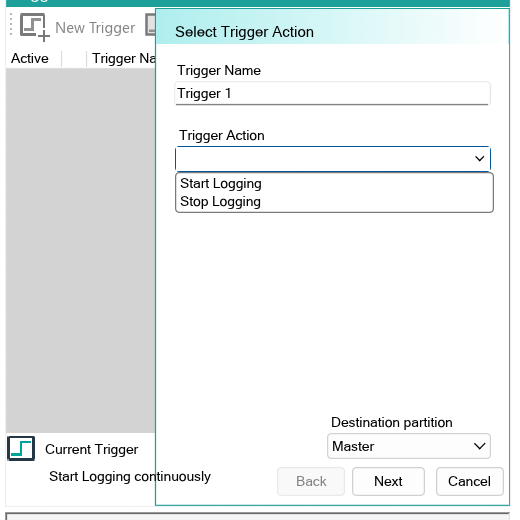
New Trigger opens a wizard. Its first page asks for a Trigger Name, a Trigger Action (Start Logging or Stop Logging) and a Destination partition; the Current Trigger line at the bottom describes the trigger as you build it.
Troubleshooting
| Symptom | Cause | What to do |
|---|---|---|
You have reached the maximum allowed triggers when you click New Trigger | The configuration already has as many triggers as the logger allows (the example above has eight) | Delete one first |
Next in the trigger wizard does nothing | No Trigger Action is selected | Choose Start Logging or Stop Logging |
The status bar reads Configuration: No Configuration | The logger holds only its empty default configuration | There is nothing to load; build a configuration and send it |
Related
---
Written for REXDESK 1.0.0.791 (23 Nov 2026).