Import a DBC file and link it to the buses
Add a CAN database (DBC) to a project so that REXDESK can show messages and signals by name: in filters and triggers, in live data and when exporting logs.
Before you start
- A project is open.
- The
.dbcfile is on the PC.
Steps
In the
Librarypane, click the first icon on its toolbar (import).An
Openwindow appears.Choose the
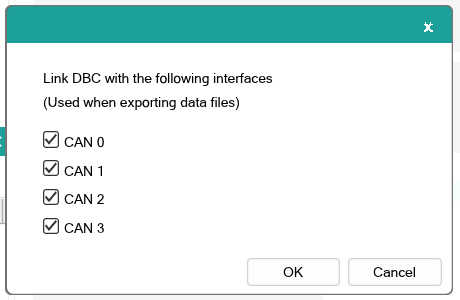
.dbcfile and clickOpen.A window asks: "Link DBC with the following interfaces (Used when exporting data files)", with
CAN 0toCAN 3ticked.Untick the buses this database does not describe and click
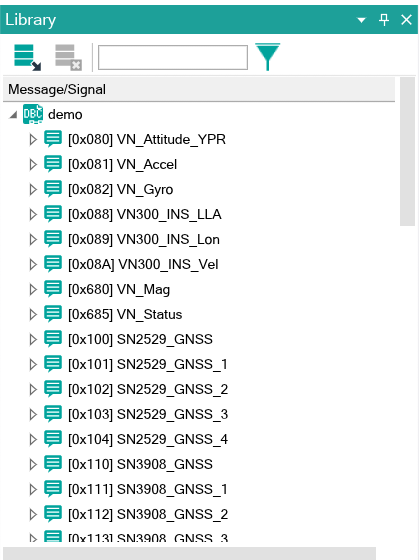
OK.The database appears in the
Librarypane under its file name, and the status bar readsImported <file>.dbc.- Click the small triangle next to the database to list its messages; click a message's triangle to list its signals.
What you should see
Messages are listed with their identifier in front, for example [0x080] VN_Attitude_YPR.
Check or change the links
Click
Export Settingson the toolbar.The
Export settingswindow opens. The left side lists the databases in the project; the right side listsCAN 0toCAN 3,LIN 0andLIN 1with the databases linked to each.- Use
Import DBCandDelete DBCto add or remove a database here.

When you export or convert a log, the frames of each bus are decoded with the databases linked to that bus.
Notes
The database is listed under its file name. Give the file a meaningful name before importing it.
Window ▸ Database Library is a separate list of databases for working with logs when no project is open. See Other windows.
Related
---
Written for REXDESK 1.0.0.791 (23 Nov 2026).