Create a configuration
Build a logger configuration from an empty project: choose what to record on each bus, add the logger's own channels, check the result in plain words, and save it. Sending it to the logger is a separate step.
Before you start
- REXDESK is open. A logger does not need to be connected.
- You know the bit rate of each CAN bus you will connect.
Steps
Dragging blocks into the configuration and setting their options
Click
New Projecton the toolbar.The title bar reads
New Projectand theConfigurationpane is empty.In the
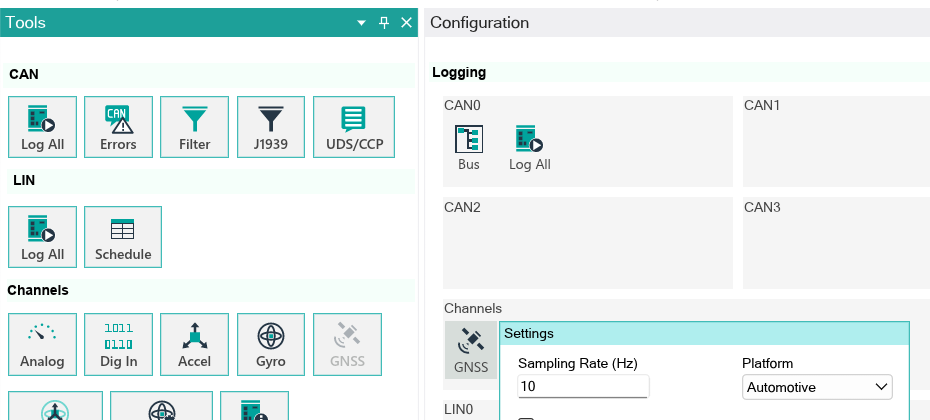
Toolspane, dragLog Allfrom theCANgroup onto theCAN0box in theConfigurationpane.A
Busblock and aLog Allblock appear inCAN0. The title bar showsNew Project *: the star means unsaved changes.- Click the
Busblock and set the bus:Type(CANor CAN FD),CAN speed, and if neededSilent ModeorAutodetect bus speed. ClickOK. Drag the channels you want from the
Channelsgroup onto theChannelsbox, for exampleAccel. Set the options that open and clickOK.The block appears in
Channels, and its tile inToolsturns grey because it can only be added once.- Choose
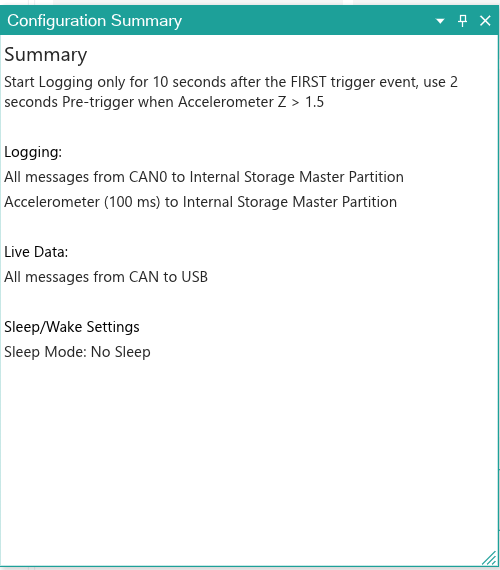
Config ▸ View Summaryand read what the configuration will do. Click
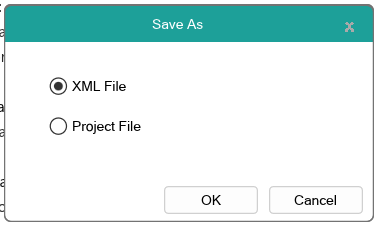
Save Ason the toolbar, chooseProject Fileand clickOK. Choose a folder and a name and clickSave.The title bar shows the project name without the star, the project appears in the
Projectspane, and the status bar readsSaved <path>.
Bus settings
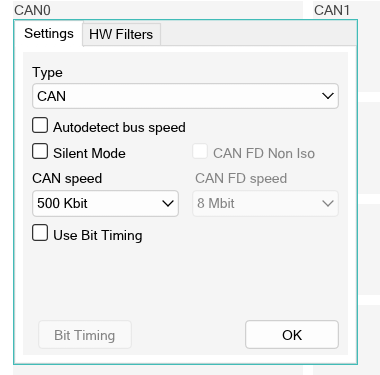
| Setting | Meaning |
|---|---|
Type | CAN or CAN FD |
Autodetect bus speed | The logger works out the bit rate from the traffic |
Silent Mode | The logger only listens and never acknowledges frames. Use it when the logger must not affect the bus |
CAN speed, CAN FD speed | The nominal bit rate and, for CAN FD, the data bit rate |
Use Bit Timing, Bit Timing | Set the bit timing by hand instead of choosing a speed |
HW Filters tab | Hardware acceptance filters for the bus |
Check the summary
Config ▸ View Summary opens Configuration Summary, which describes the project in sentences: the triggers, what is logged to which partition, what is sent as live data, and the sleep mode.
Save and export
Save As asks for the kind of file first:
| Command | File | Use it for |
|---|---|---|
Save As ▸ Project File | .rpf | The project you keep working on in REXDESK |
Save As ▸ XML File | .xml | The configuration as editable XML |
Config ▸ Export ▸ Export REXGEN Configuration (rxc) | .rxc | The compiled configuration, ready to send to a logger with Config ▸ Run ▸ Run Config Using External File or to copy to cloud storage |
Config ▸ Export ▸ Export Configuration to XML | .xml | An XML copy without changing the open project |
After an export the status bar reads Exported <path>.
Notes
To remove a block, right-click it in the Configuration pane. Hovering a block shows Right mouse click to delete from configuration.
Some blocks exclude each other on the same bus. In the test, J1939 could not be dropped on a bus that already had a Filter block, and was accepted on an empty bus.
Related
---
Written for REXDESK 1.0.0.791 (23 Nov 2026).